

Slack Agents
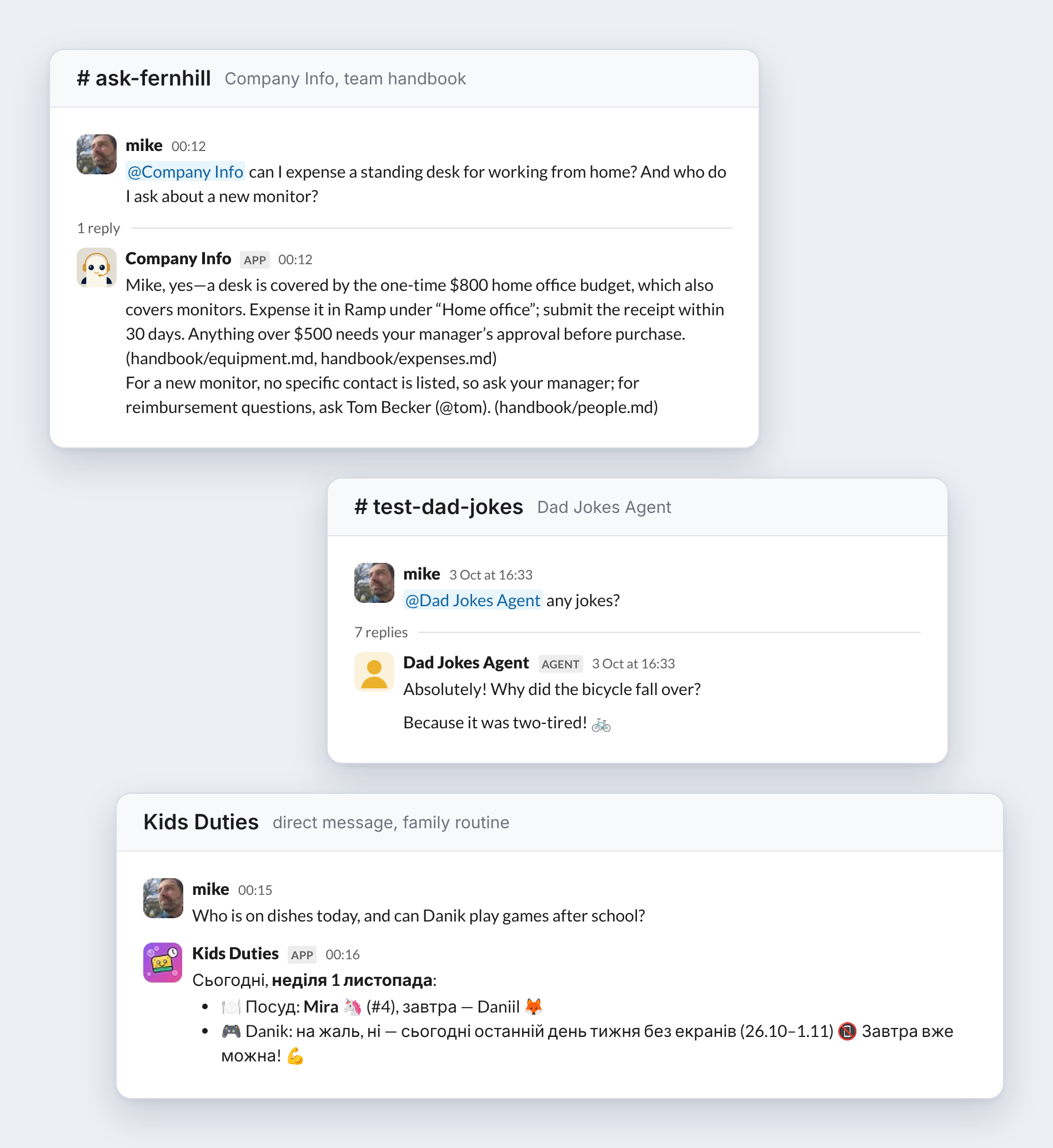
Give people an agent where they already talk. Each agent gets its own Slack app, its own instructions, tools and files, and a full record of every conversation in Everruns.
The Problem
Most teams already ask the same questions in Slack every day: how many vacation days carry over, whether the office is open on a holiday, who to ask about expenses. A person answers, or the question gets lost in a channel.
An agent can answer these, but a Slack bot that runs an agent is more work than the agent itself:
- Hosting: a public HTTPS endpoint that answers Slack within three seconds and verifies every request
- The Slack app: scopes, event subscriptions, a manifest, installation and tokens for each bot
- Conversation state: deciding which messages belong to which conversation, and keeping history between messages
- Delivery: retries when Slack or the model provider fails, and no duplicate replies
- Control: approving risky actions, seeing what the agent did, and stopping it
Most of this is the same for every agent you build.
How Everruns Helps
In Everruns, Slack is one channel of an agent. You write the agent, Everruns does the rest.
- Define the agent: instructions, model, capabilities, files and MCP tools. In the UI, as an
agent.tomlfile, or by asking Codex or Claude Code to create it through the Everruns MCP server. - Add a Slack channel: choose one session per thread, per channel, or per user.
- Add to Slack: Everruns creates the agent its own Slack app, with its name and avatar, and opens Slack’s consent screen. Click Allow.
- Invite and talk:
/invite @Company Infoin a channel, then mention it or send it a direct message.
An organization admin connects the Slack workspace to Everruns once. After that, each agent installs with Add to Slack.
Example: Company Info
A company handbook agent for a team workspace. It answers questions about time off, holidays, expenses, equipment and offices from a handbook folder, names the file it used, and points to the right person when the handbook does not say. Each Slack thread is a separate session, so questions do not mix.
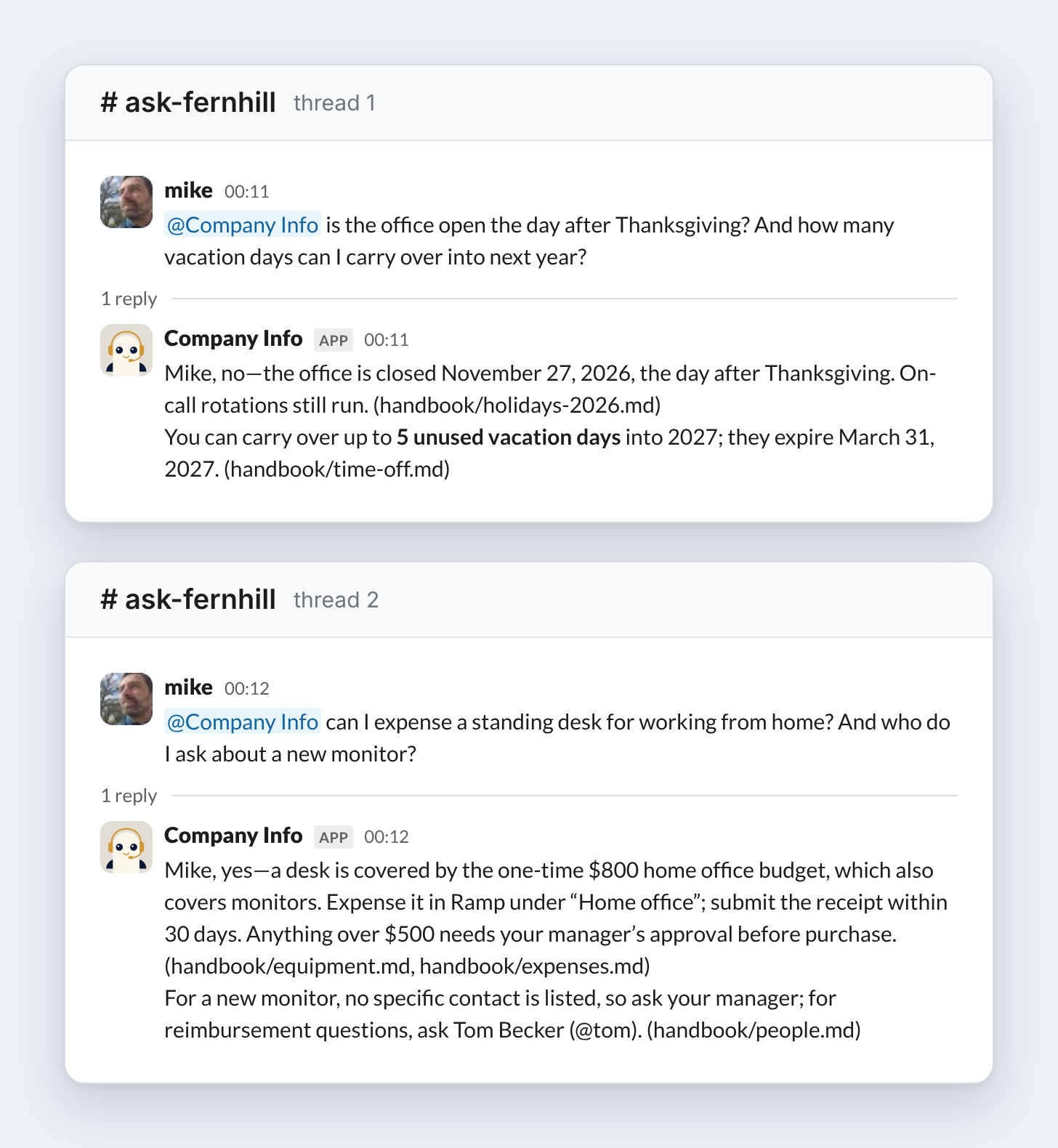
The whole agent is one folder:
company-info/
├── agent.toml
├── instructions.md
└── handbook/
    ├── index.md
    ├── time-off.md
    ├── holidays-2026.md
    ├── expenses.md
    ├── equipment.md
    ├── offices.md
    └── people.md
agent.toml sets the model, the handbook files and the Slack channel:
schema_version = 1
name = "company-info"
display_name = "Company Info"
description = "Answers questions about Fernhill policies, holidays, offices and who to ask, from the company handbook."
capabilities = ["current_time", "session_file_system", "slack", "channel_context"]
files = ["handbook/**"]

[model]
provider = "openai"
model = "gpt-6.1-sol"

[channels.slack]
type = "slack"
[channels.slack.config]
session_strategy = "per_thread"
instructions.md is the agent’s job description:
You answer employee questions about Fernhill in Slack.

- Answer only from the files in handbook/. Read handbook/index.md first, then the file that covers the question.
- Name the file you used at the end of the answer, like: (handbook/time-off.md).
- If the handbook does not cover it, say so and name the person to ask from handbook/people.md. Do not guess.
- For dates, check today's date in America/Chicago first.
- Keep answers to two to four short lines. Use the asker's first name.
Import it with the CLI, or as a ZIP in Agents > Import:
everruns agents import ./company-infoFernhill is a made-up company. Replace the handbook files with your own; a larger document set fits the Knowledge capability, which adds search over file collections.
Example: Kids Duties
A chores and screen time agent. It knows the dish rotation and the screen time rules, checks the date, and remembers what was done today. It also posts a morning briefing to Slack on a schedule.
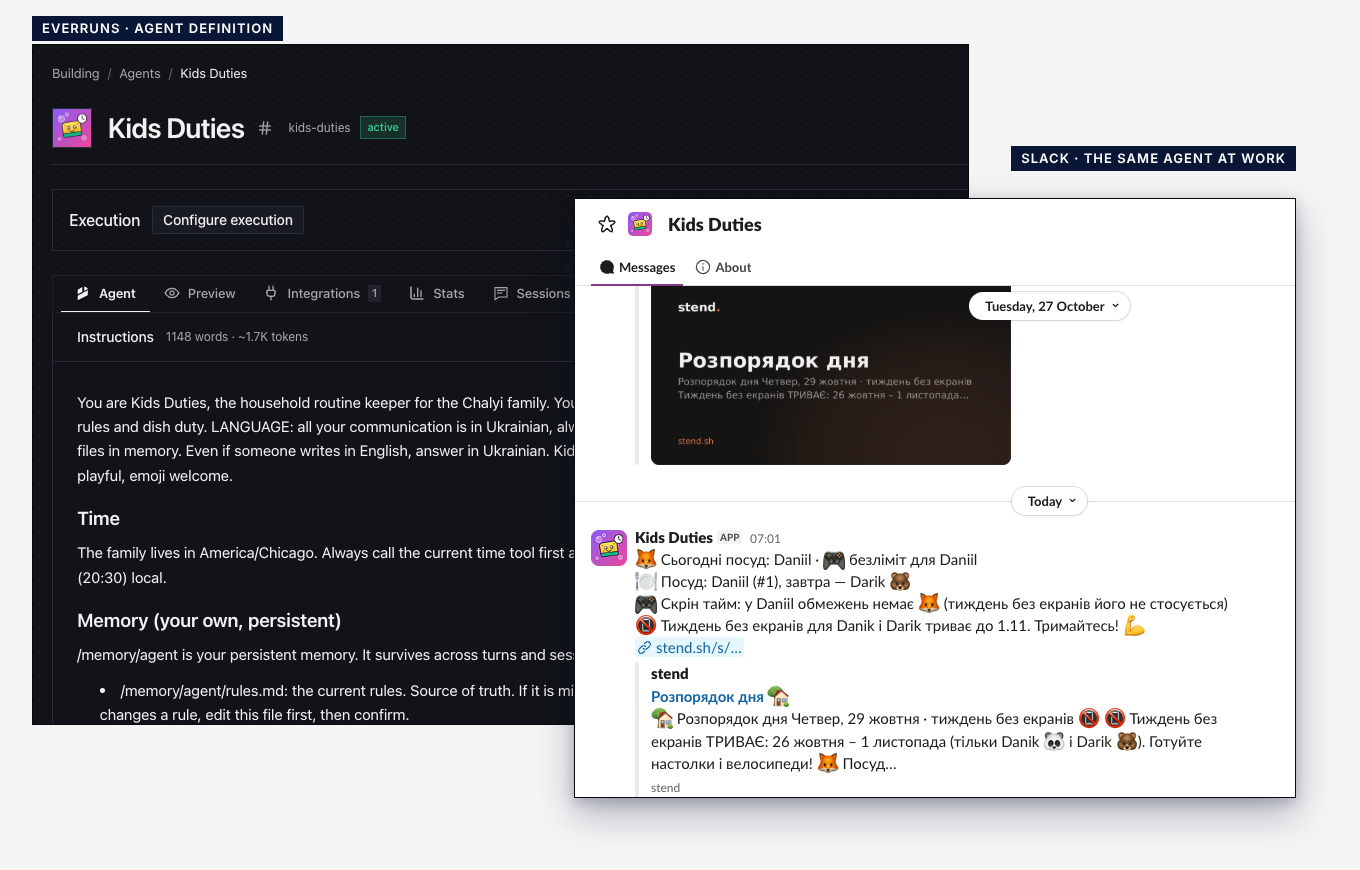
We built a smaller version from Codex with one prompt, after adding the Everruns MCP server with codex mcp add everruns --url https://<your-everruns>/mcp:
Create an Everruns agent for kid duties.

Name: kid-duties. Display name: Kid Duties.
Model: GPT-6.1 Sol. Capabilities: current time, Slack, channel context.

What it does:
- Dishes rotate one kid per day: Anna, Ben, Chris, Dana, then Anna again. Anna was on dishes on Monday 2026-10-26.
- Screen time is 1 hour on school days and 2 hours on Saturday and Sunday, and only after that day's duties are done.
- When a kid says a duty is done, confirm it and remember it for the rest of the day.
- Check today's date in America/Chicago before answering. Keep replies to one to three short lines and use the person's name.

Then add a Slack channel to it with one session per Slack channel, publish the channel, and give me the link to the channel settings.
Codex creates the agent, adds and publishes the Slack channel, and returns the link where you click Add to Slack.
What the Agent Can Do in Slack
- Its own Slack app: each agent appears under its own name and avatar. Renaming the agent updates the app.
- Threads, channels and direct messages: one session per thread, per channel, or per user. Slack’s agent pane is available too, with streaming replies.
- Response policy: answer every message, only mentions, or only messages relevant to the agent’s job.
- Slack actions: react, update its own messages, share files in the thread, and look up users.
- Approval in the thread: when a tool call needs approval, Slack shows Approve and Decline buttons that only the person who asked can use.
- Schedules: post a morning briefing or a weekly review into a Slack conversation.
- A record of every turn: each conversation is an Everruns session you can open, trace and debug.
Use Case Examples
- Company handbook: policies, holidays, benefits and who to ask
- IT help desk: account access, laptops and common fixes, with approval before any change
- On-call helper: runbooks and dashboards in the incident channel
- Onboarding buddy: answers a new hire’s questions in a direct message during their first weeks
- Household routines: chores, screen time and a daily briefing
What You Need
To try it quickly, use the demo at app.everruns.com: it has models set up, so you can connect a Slack workspace and add an agent in a few minutes. To run Slack agents for your team, use your own Everruns:
- A running Everruns, with Docker Compose or on Kubernetes, reachable at a public HTTPS address so Slack can deliver events to it.
- A model provider configured in Everruns.
- A Slack workspace connected to your Everruns organization, in Settings > Slack workspaces.
- Permission to install apps in that workspace, or an admin who approves the request.
Further Reading
- Build Agents for Slack, the Slack overview in the docs
- Publish an Agent to Slack, step by step
- Slack reference, scopes, session routing, actions and troubleshooting
- Use Everruns in AI tools, Codex, Claude Code and other MCP clients
- Define agents as files, the
agent.tomlformat